
Google Play Games
Google LLCEntertainment
3.9201.57K Reviews
- Version
- Varies With Device
- Installs
- 5.00B
- Age Rating
- Teen
Screenshots
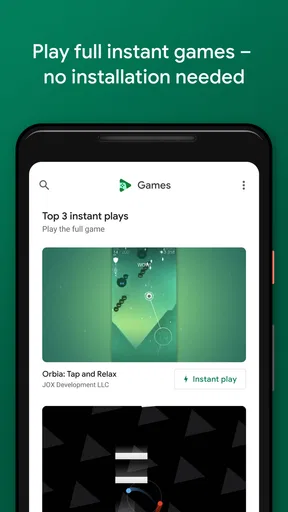
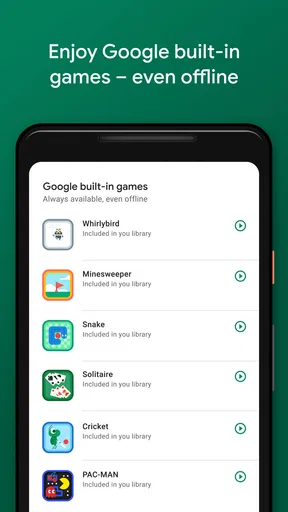
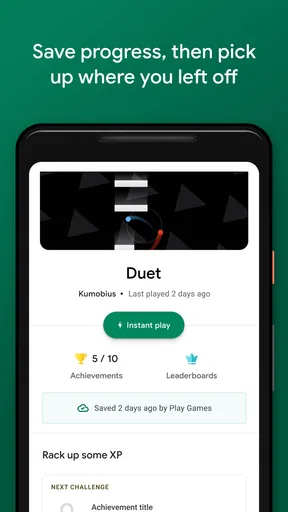
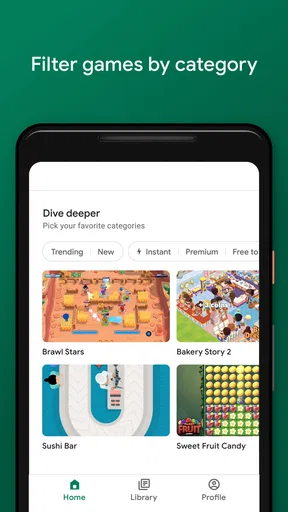
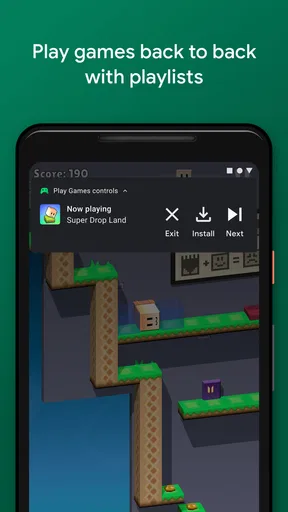
Our Review of Google Play Games
 Analysis by Appyee
When I first opened Google Play Games, I found it easier to think of it as a companion to Android games rather than a game in its own right. Its main appeal is having a place to discover supported games, keep track of progress, and make achievements part of the fun. If you’re new to it, the reassuring part is that you don’t need a complicated plan: open the app, look around, choose a game that interests you, and let the features make more sense through play.
What you’re getting, and what you aren’t
Google Play Games is a free entertainment app from Google LLC. It has been around since July 24, 2013, and its audience is substantial: it has over five billion installs, an average rating of 4.0 from around thirteen million ratings, and roughly 202,000 written reviews. Those figures suggest that it is a familiar part of Android gaming for many people, but they don’t mean every game will use every feature in the same way.
The most useful expectation to set is that this app supports your gaming routine; it doesn’t replace the games themselves. It can help you find something to play and give certain play sessions a sense of continuity or achievement, but the experience still depends on each game. A title may use achievements or saved progress differently from another, so I wouldn’t treat one successful sync as a guarantee that every game behaves identically.
That distinction matters if you’re deciding whether to install it. If you mainly want a straightforward list of games you already own, the app can be a handy starting point. If you expect one universal dashboard to control every setting, save every game automatically, or make every title social, you may find the reality less seamless. I get the most from it when I use it as a useful layer around games rather than as the center of all gaming activity.
A simple first setup
For a first visit, I’d keep things low-pressure. Open the app and get familiar with its layout before worrying about achievements, friends, or cloud saves. Look for a game you already enjoy or one that genuinely catches your eye. Starting with a familiar title gives you a practical way to see which features appear in your own setup, instead of trying to understand every option in the abstract.
As you explore, pay attention to whether the game you choose is connected to the features you care about. The app’s role can vary from title to title, and that is where new users can get confused: seeing a feature in the hub doesn’t necessarily mean every game will support it. I recommend checking what is actually available for a particular game before making plans around a leaderboard, an achievement, or a saved session.
It also helps to begin with one device and one game. That gives you a clear baseline for what progress looks like before you test anything across devices. If you switch between a phone and tablet, try a game you already know well and check that the experience resumes as you expect. For anything you would be disappointed to lose, I’d avoid assuming that a cloud-saving feature works without checking the game’s own behavior first.
Your first satisfying result
A good first success doesn’t have to be a high score. Pick a game, play long enough to complete a small objective, and then see whether the app records an achievement or reflects your activity. That small check shows you how the hub and the game work together, and it makes the achievement system feel less mysterious. If nothing appears, it may be a game-specific limitation or a sync delay rather than a sign that you missed an obvious step.
For a casual player, this is a useful way to add a little structure to short sessions. Imagine having a few spare minutes while waiting for an appointment: you open a familiar game, work toward one clear milestone, and later use the hub to see what you have been playing or what you might try next. I like that this can make brief play feel purposeful without requiring a long session or a competitive goal.
Where the social features fit
Friends, challenges, and leaderboards can add a friendly reason to return, especially if you already know people who play the same games. I’d treat them as optional extras, not the main reason to use the app. A leaderboard is most enjoyable when you recognize the people or scores you’re comparing; a global ranking can be interesting, but it may not feel meaningful if the game has a huge range of players or a scoring system you don’t know well.
One practical tip is to use social competition to set a personal target rather than to chase every rank. If a friend’s score is within reach, improving on it can make a familiar game feel fresh. If the gap is enormous, the ranking may tell you more about time spent or game experience than about whether you’re enjoying yourself. In that case, I’d switch back to achievements or simply play for the game itself.
Progress across devices: useful, but check it
Cloud saving is one of the features with the clearest everyday payoff. If you play on both a phone and a tablet, it can make it easier to continue a game in the place that suits you. I’d still test the handoff deliberately: finish a short session, give the game a moment to update, and then check the other device before relying on the save for a long campaign. That is a sensible habit whenever progress matters, because the game’s own support and timing affect how smooth the switch feels.
This also explains why I wouldn’t use the app as a substitute for checking a game’s own save options. The hub can be helpful, but the individual title remains important. If a game offers its own account or backup arrangement, understand how that relates to your progress before changing devices or reinstalling. Taking a minute to check is less exciting than playing, but it can prevent an unpleasant surprise.
The Gaming Hub You Need
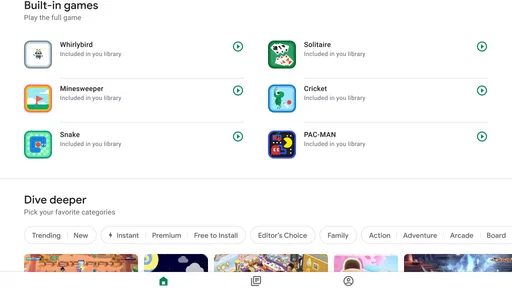
First things first, Google Play Games acts like a super convenient gaming center. You know how sometimes you’re in the mood to play, but you’re just not sure what? This app solves that. It’s like having a friend who knows everything about all the games you might love. Plus, it keeps everything nice and tidy in one place.
Features That Stand Out
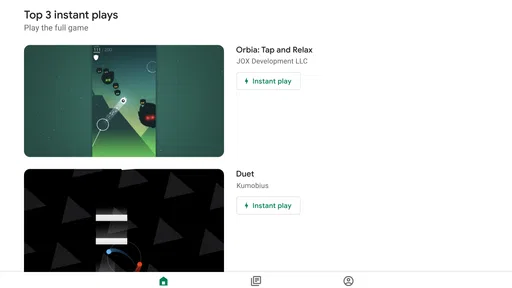
One of the features I absolutely love is the game recommendations. The app does a pretty solid job of suggesting games based on what you’ve played before. It’s like your own personal gaming assistant that keeps you entertained and never lets you get bored.
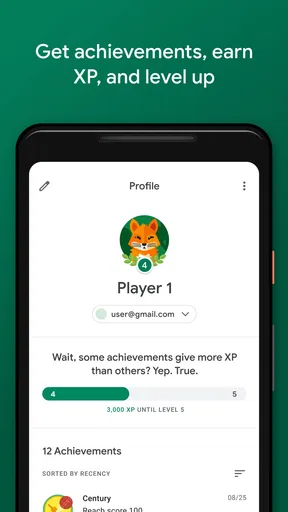
Another great aspect is the achievement system. It’s like earning bragging rights for the challenges you’ve conquered. Whether it’s completing a tough level or just spending a certain amount of time in a game, these little badges are oddly satisfying to collect.
Social Gaming Made Easy
What’s gaming without friends, right? The social features in Google Play Games are pretty neat. You can connect with your buddies, see what they’re playing, and even challenge them to beat your scores. It’s all about that friendly competition!
The app also has leaderboards, which are a fun way to see where you stand among your friends or even globally. It’s always exciting to try and climb up those ranks.
Seamless Gameplay Across Devices
One thing that really blew me away is the cloud saving. You can start a game on your phone and pick up right where you left off on your tablet. It’s super convenient, especially if you’re someone who switches devices often. No more losing progress—hallelujah!
A Few Little Quirks
Okay, so not everything is perfect. Sometimes the app can be a bit slow to load, especially if you have a ton of games. It’s not a big deal, just a little hiccup when you’re eager to dive into a game.
Also, while the achievement system is fun, it might not always sync perfectly with all games. A few times, I noticed that achievements weren’t registering, which can be a bit of a bummer when you’re aiming for that next badge.
Who will get the most from it
I’d recommend it most to Android players who move between several games and enjoy having a light record of their progress. It suits people who like collecting milestones, discovering titles through recommendations, or comparing scores with friends. It can also be useful for someone returning to mobile gaming after a break: instead of searching through every game individually, the hub offers a familiar place to start browsing.
It is less compelling if you play only one game and already use that game’s own community, account tools, and progress system. Likewise, if you prefer to avoid social comparisons or achievement prompts, those features may add little to your routine. You can still use the app as a convenient gaming center, but there is no need to turn every badge or ranking into a goal.
How it compares with other ways to find games
Compared with browsing the general app store, a gaming-focused hub feels more relevant when you already know you want to play. Recommendations and play-related features keep the focus on games rather than mixing them into a broader search for apps. On the other hand, a general store remains the better place when you want to compare a wider range of apps or explore beyond gaming. I see these as complementary: use the hub to orient yourself around play, and the broader store when you want a wider search.
It also differs from relying only on each game’s built-in menus. Those menus are usually the place to understand a specific title’s rules and options; Google Play Games is more useful for the shared layer around supported games, such as achievements, social activity, and recommendations. Neither approach fully replaces the other. When a feature seems missing, checking the game itself is a more useful next move than repeatedly searching the hub.
Small habits that prevent frustration
If an achievement does not appear, I’d first finish the objective in the game and give the app time to reflect it before repeating the task. Then I’d check whether that particular title actually uses the achievement feature. This avoids grinding through the same challenge unnecessarily. When a score matters to a friendly contest, it is also worth checking the relevant leaderboard after a completed session rather than assuming that every result appears instantly.
For recommendations, I’d treat the first suggestions as a starting point, not a verdict on your taste. If you have played a narrow set of genres, the app may naturally steer you toward similar experiences. Browsing beyond the first few suggestions can be worthwhile when you want something different. That is a small but useful trade-off: personalization saves time, while a little exploration helps prevent your gaming choices from becoming too predictable.
Parents and younger players should also notice that the app carries a Teen content rating. I would use that as a prompt to consider the games themselves, rather than assuming the hub’s rating describes every title in it. Each game can have its own content and audience, so it makes sense to check the individual game before choosing it for a younger player.
When a different approach is better
If your priority is reliable progress on one particular game, that game’s own save settings deserve your attention first. If you want deep strategy, walkthroughs, or discussion, a dedicated community for that title may be more useful than a general gaming hub. And if you simply want to launch a game you already know, opening it directly can be quicker than taking an extra stop through another app. The hub earns its place when its discovery and tracking tools are useful to you, not just because it exists.
My overall advice is to try it with a game you already care about, then decide whether the added layer makes your routine better. Check one achievement, explore a recommendation, or test a device handoff with progress you can afford to verify. That gives you a fair impression without asking you to reorganize your gaming habits around the app.
Final Thoughts
All in all, Google Play Games is a fantastic companion for any Android gamer. It’s user-friendly, packed with features, and just a great way to enhance your gaming experience. Whether you’re a casual player or a hardcore gamer, there’s something here for everyone.
If you haven’t given it a shot yet, you might want to check it out. And trust me, once you get hooked on those achievements, there’s no going back!
Verdict
Strengths of Google Play Games
- Syncs game progress across devices.
- Wide selection of games available.
- Integrated achievements and leaderboards.
- Minimal resource usage.
- User-friendly interface.
Limitations of Google Play Games
- Limited to Android devices.
- Occasional connectivity issues.
- Some games require in-app purchases.
- Lacks parental controls.
- Not all games support cloud saves.
Other Releases by Google LLC
View All
Google Calendar
Productivity4.6

Google Messages
Communication4.6

Tools4.0

Google TV
Video Players & Editors3.9
Similar Picks in This Category
View All
Netflix
Netflix, Inc.4.8

YouTube Kids
Google LLC4.2

Disney+
Disney4.4

Prime Video
Amazon Mobile LLC4.7

Steam
Valve Corporation3.2

PlayStation App
PlayStation Mobile Inc.3.5
You May Also Like
View All
Frequently Asked Questions
What is Google Play Games and what does it offer?
Google Play Games is a platform that provides a variety of gaming features for Android users. It offers achievements, leaderboards, and cloud saves, allowing you to track your progress and compete with friends. The app also includes a library of games, game recommendations, and social features to enhance your gaming experience.
Do I need an internet connection to use Google Play Games?
While an internet connection is required to access certain features like leaderboards, achievements, and cloud saves, many games can be played offline. However, to enjoy the full social and competitive aspects of Google Play Games, being online is beneficial.
How does Google Play Games enhance my gaming experience?
Google Play Games enhances your experience by offering achievements and leaderboards that allow you to track and showcase your gaming skills. Cloud saves ensure you don't lose progress, even if you switch devices. The platform also suggests new games based on your interests, making it easier to discover new favorites.
Is Google Play Games free to download and use?
Yes, Google Play Games is free to download and use. However, some games within the platform may offer in-app purchases or premium versions. While the app itself doesn't charge, your gaming costs will depend on the specific games you choose to play.
Can I use Google Play Games on iOS devices?
Google Play Games is primarily designed for Android devices, integrating deeply with the Google Play ecosystem. However, some games available on Google Play Games may also offer iOS versions, but the specific features of the Google Play Games app, like achievements and leaderboards, are exclusive to Android.
